Discover 88 Hero Sections
Hero Sections for React and Tailwind CSS
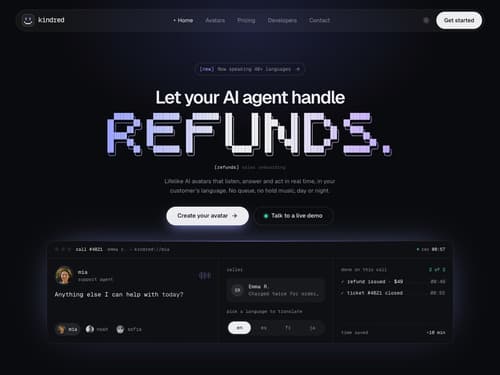
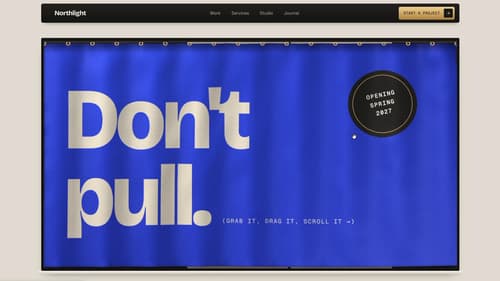
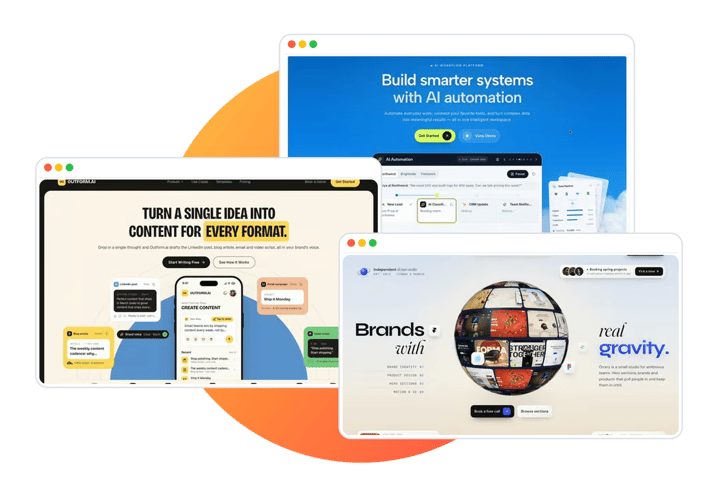
88 animated hero sections for Next.js, Vite and Astro, 21 of them free. Each one comes with its own navigation, images and motion, and installs with one CLI command or an AI prompt.
What is a hero section in a website?
A hero section is the first screen of a website: the large area at the top that visitors see before they scroll. It usually holds the main headline, a short supporting line, a call-to-action button and a strong visual.
Its job is to tell people what you do and give them one clear next step, in the few seconds before they decide to stay or leave. That's why it's often the most designed part of a landing page. Motion helps when it points somewhere: a headline that reveals word by word, a background that follows the cursor, or a 3D object that turns as you scroll should lead the eye to the button, not away from it. Every hero here is one of our animated sections.
How to add a hero section to your website
You add a hero section with one CLI command or by pasting an AI prompt into your editor. Either way, the full source code lands in your project.
- Pick a hero from the grid. Use the style filters to narrow the list, and open the live preview.
- Install it with the CLI. Run
npx motionuikit@latest add <name>in your project folder (Node.js 20 or newer). It writes the section tocomponents/motionuikit/sections/<name>, undersrc/if your project has one, and installs the npm packages it needs. See the CLI guide. - Or use an AI prompt. Copy the prompt from the section page into Cursor, Claude, v0, Lovable, Bolt or any AI tool with a terminal. It runs the same install and places the hero on your page.
- Make it yours. Import it from
@/components/motionuikit/sections/<name>, then change the copy, images and colors.
Browse hero sections by style
Filter by style to match the look and motion you want. Each style changes how the first screen feels before anyone reads a word.
- Gradient: soft color blends behind the headline. A calm, polished first screen for products that don't need to shout.
- 3D Animation: Three.js scenes that react to scroll or the cursor. One 3D object beside the headline gives the first screen a clear focal point.
- Text Animation: headlines that type, scramble or reveal word by word. It makes visitors read the one line that matters most.
- Magnetic Effect: buttons and elements that pull toward the cursor. It draws attention to the main call to action without adding clutter.
- Motion Background: backgrounds that move on their own behind the headline. They set the mood from the first second.
- Parallax: layers that move at different speeds as you scroll. They add depth as visitors move past the first screen.
Frequently asked questions
Keep it to one message. Write a headline that says what you do, add one supporting line and one call-to-action button, and pair them with a visual that shows the product. Make sure it loads fast and reads well on mobile, and use motion only where it guides the eye to the button.
A headline, a short supporting line, a call-to-action button and a strong visual. Many also add a navigation bar and a trust signal, such as client logos or a rating. Every MotionUIKit hero includes its own navigation, so it works as a complete first screen.
At the very top of the page, right below or around the navigation bar. It's the first screen visitors see before they scroll, usually on the home page or a landing page.
Place a muted, looping <video> behind the headline with autoplay, muted, loop and playsinline, and add a poster image for slow connections. Or filter by Background Video and install a hero that already has it set up.
Short enough to read at a glance, usually under ten words. Say what you do or what the visitor gets, not your company slogan. Put the detail in the supporting line below it, and check it on a phone, where long headlines wrap badly.
21 of the 88 hero sections are free. Browsing them and watching their live previews needs no account; seeing the code or installing needs a free account. The other 67 are Pro and need a paid plan, which also includes every Pro component and template.
Yes. Every hero section ships with its own navigation bar, images, styles and motion, so it works as a complete first screen. If your site already has a header, remove the section's navigation in the code and keep the rest.
Run npx motionuikit@latest add <name> in your project with Node.js 20 or newer, or paste the hero's AI prompt into Cursor, Claude, v0, Lovable or Bolt. The first run asks for your API key from Account settings. Each install counts toward your daily limit.
Yes. The full source lands in your project, including the section's own stylesheet, so you edit the headline, images, colors and fonts directly. The section's styles apply only inside it, so your changes don't affect the rest of your site.
Yes. The license covers unlimited projects, client work included, and you keep everything you installed after your plan ends. You can't resell the sections as your own template, UI kit or design file, or use them to build a competing product.