Discover 88 Sections
Website Sections for React and Tailwind CSS
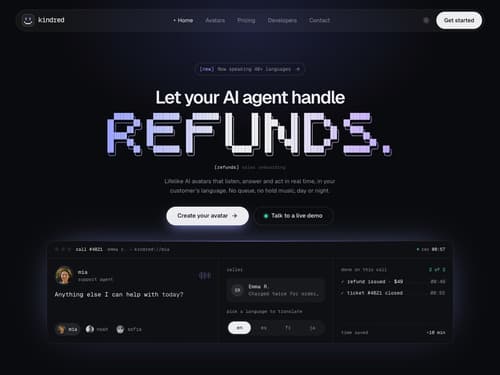
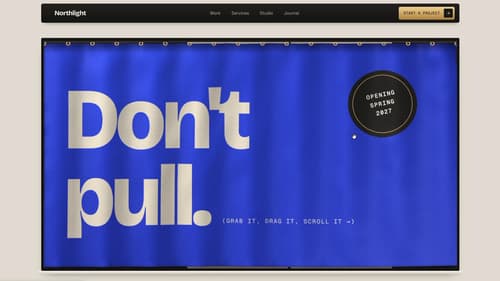
88 animated sections for React and Tailwind CSS v4, 21 free. Parallax, 3D and text effects built in. Install with one CLI command or an AI prompt.
What is an animated section?
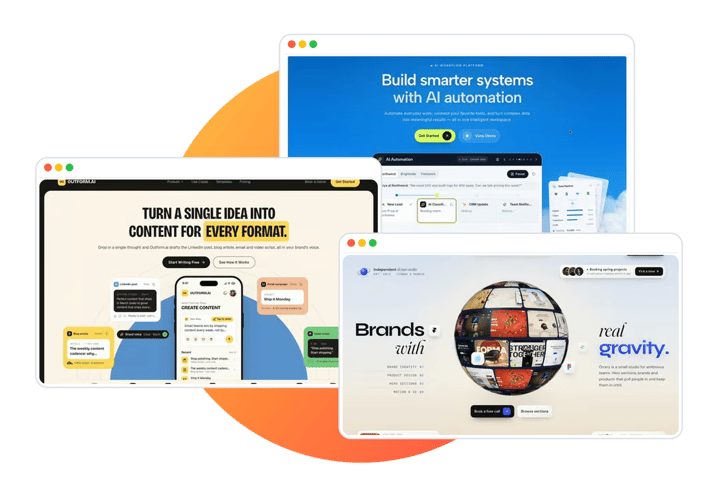
An animated section is one full block of a web page, such as a hero, that comes with its layout, styling and motion already built. You drop it into a page, swap in your own text and images, and the rest of your site stays exactly as it was. You'll also see them called website blocks or React blocks: same idea, a ready-made piece of a page you drop in.
That last part matters. Every React website section here ships with its own stylesheet, so its colors and fonts stay inside the section instead of leaking into your global CSS. In size, sections sit in the middle: bigger than React components, which are single pieces of UI like a button, and smaller than animated website templates, which are whole sites. All three are part of MotionUIKit, a UI kit of animated React and Tailwind CSS code that you own.
How to add an animated section to your website
Run one CLI command, or paste an AI prompt into your editor. Both put the full source code of the React website section in your project, not a package you depend on.
- Pick a section. Narrow the grid with the style filters and open the live preview. Want a free one to start with? Try Axiom, an ed-tech section.
- Install it with the CLI. In your project folder, run
npx motionuikit@latest add <name>(Node.js 20 or newer). The section lands incomponents/motionuikit/sections/<name>, undersrc/if your project has one, and the CLI installs the npm packages it uses. The CLI guide covers every option. - Or hand it to your AI tool. Copy the prompt from the section page into Cursor, Claude, v0, Lovable, Bolt or any AI tool with a terminal. It runs the same install and puts the section on your page.
- Make it yours. Import it from
@/components/motionuikit/sections/<name>, then change the copy, images and colors.
AI agents can also connect through MCP.
Browse animated sections by style
Each filter narrows the grid to one kind of motion, so you can find animated blocks that fit your brand. Start with the feel you want, then open two or three previews to compare how they move.
- Gradient: soft color blends that shift behind the content. A calm choice for products that want to look polished rather than loud.
- 3D Animation: Three.js scenes that turn with scroll or follow the cursor. They give the page one clear focal point, so keep the headline beside them short.
- Text Animation: headlines that type, scramble or reveal word by word. The motion gets people to read the first line, which is the one that matters most.
- Magnetic Effect: buttons and elements that pull toward the cursor. It draws attention to the call to action without adding anything to the layout.
- Motion Background: backgrounds that keep moving on their own. They set the mood from the first second; check that the text on top stays readable throughout.
- Parallax: layers that scroll at different speeds to add depth. It turns a plain scroll into something that feels crafted, and works best with large images.
Browse sections by category
Sections are grouped by the job they do on a page. Each category page shows every section in it, with a live preview of each one.
- Hero sections: the first screen of a page, with its own navigation. Visitors decide in a few seconds whether to stay, so this is where motion earns its place.
Coming soon: Bento grid, Feature, FAQ, Footer, Pricing sections and More.
Frequently asked questions
Most sites are built from the same website blocks, in a familiar order: a hero at the top, then features or benefits, social proof, pricing, an FAQ, a call to action and a footer. Each block answers one question a visitor has, so put them in the order those questions come up as people scroll.
At minimum, a hero with one clear action, proof that the product works, a short list of benefits and a closing call to action. Add pricing if people buy on the page, and an FAQ if they have questions first. Animated blocks work best at the top and bottom, where motion leads the eye to the button.
Think of it by size. A component is one piece of UI, like a button. A section is a full block of a page, like a hero with its own navigation. A template is a whole website built from several sections. Pick the size that matches the job.
Install it with the CLI or an AI prompt, then import it from @/components/motionuikit/sections/<name> and render it in your page file the same way you use other React blocks, usually near the top. Its stylesheet comes with it, so there is no global CSS to set up.
No. Each section brings its own stylesheet with its own colors and fonts, and those styles apply only inside the section, so your global CSS is left alone. Your project does need Tailwind CSS v4. The CLI sets it up if it is missing and upgrades v3.
21 of the 88 sections are free. You can browse them and watch their live previews without an account; seeing the code or installing needs a free account. The other 47 are Pro and need a paid plan, which also includes every Pro component and template. See plans and limits.
Not to look around. Browsing and previewing free sections works without signing in. To copy code or install, you need a free account, and the CLI also needs the API key from Account settings. Every copy or install counts toward your daily limit, which resets at 00:00 UTC.
Every React website section here runs on Next.js, Vite or Astro. Sections are written in TypeScript; in a JavaScript project, the CLI converts them to .jsx and .js as it installs them. In Astro, the CLI adds the React integration for you, and you render a section with client:load.
Everything you already copied, installed or downloaded, source code included. There is no MotionUIKit runtime in your project, so nothing stops working. Your account moves to the Free plan, and you can keep installing free sections within its daily limits.
Yes. The license covers unlimited projects, client work included. What you can't do is resell the sections as your own template, UI kit or design file, or use them to build a competing product.